If there is something in the bottom like text or something what do you do?
Keep the text outside the brush mask. Paint only over the visible watermark, leave a clear gap around any text you want to preserve, run the repair, and compare the preview with the original before downloading. Cleanmark changes the pixels selected by the brush; it cannot recover text that you paint over by mistake.
What the test actually covered
We generated an image that we own for this test. It contained a simple colored background, the phrase “KEEP THIS TEXT,” and a separate artificial label reading “TEST.” We uploaded that PNG to the unchanged Cleanmark homepage tool, drew the mask over the artificial label, processed it in the browser, and downloaded the resulting PNG.
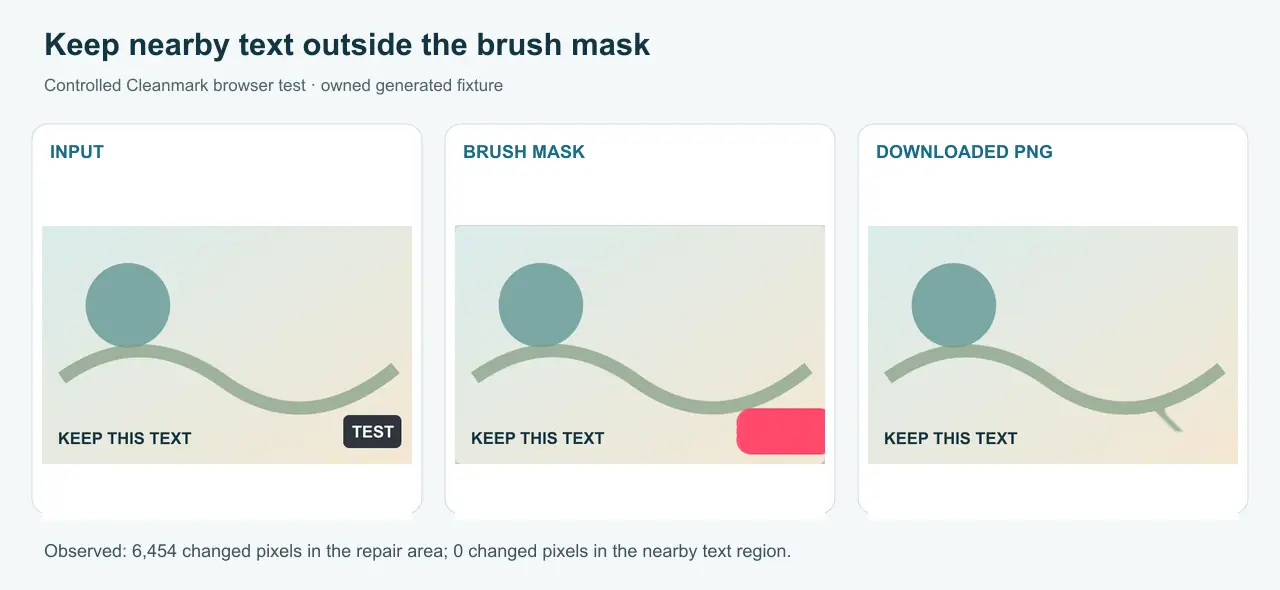
Owned generated fixture and actual browser-tool result. The composite is 1,280 × 590 pixels and 20,610 bytes. No community image was reused.
A pixel comparison found 6,454 changed pixels, all inside the bottom-right repair area. The defined region around “KEEP THIS TEXT” had no changed pixels. The input and output both measured 560 × 360 pixels. Those numbers describe this one run; they are not an accuracy claim for other images.
Place the brush before you repair
- Upload a copy of an image you own or have permission to edit.
- Reduce the brush size when the mark sits close to letters, a date stamp, a caption, or another detail you want to keep.
- Paint the mark without crossing into the neighboring text. Zoom your browser if that makes the boundary easier to see.
- Run the repair and inspect both the erased area and the nearby letters at full size.
- If the mask touched the text, choose Edit mask or reload the original and make a tighter selection. Keep the original file until you accept the result.
When the text and watermark overlap
Do not expect the original letters to survive if the brush covers them. Cleanmark fills the selected area from nearby pixels and does not run a generative model. If a watermark crosses text, both are part of the same flattened pixels, and removing the mark may blur or replace parts of the letters. A smaller mask can reduce unnecessary changes, but it cannot reveal characters hidden beneath an opaque mark.
This differs from removing text as the target. If the words themselves are what you want to erase, use the text-removal page. If the text should remain and only the nearby watermark should go, use the main tool with a tight manual selection.