Is there any way to convert HEIC files in a way that can be used properly?
Yes: decode the HEIC and export a genuine PNG or JPEG, then test that copy in the editor you need. Changing the filename extension alone is not conversion. Cleanmark accepts PNG, JPG/JPEG and WebP; it cannot load a HEIC directly. If a converter adds visible text, try a clean export from an authorized original before treating that text as a repair job.
This is a format-compatibility answer, not a diagnosis of an unknown converter or a promise to restore detail beneath its label. The experiment uses an owned artificial static drawing, not an iPhone photograph.
Decode
Read the actual input format with a compatible decoder.
Export
Create a genuine supported image; keep the original separately.
Open
Check that copy in the intended editor before repairing anything.
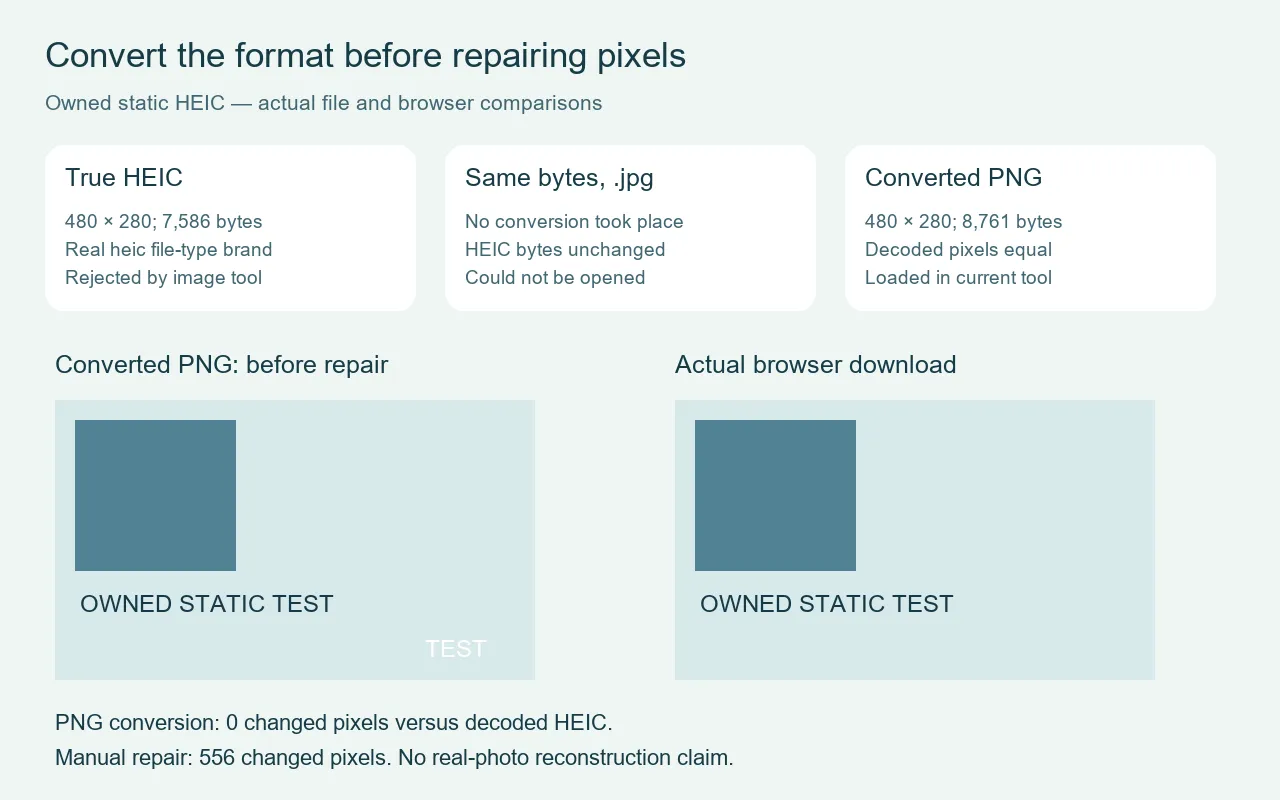
One image, three input outcomes
We created a static RGB drawing ourselves, with a plain background, a colored rectangle, wanted text and a small artificial TEST mark. We encoded it as an actual HEIC using pillow-heif 1.8.1. The saved file measured 7586 bytes and decoded to 480 by 280 pixels. Its file-type header included the heic brand. This was a real encoded fixture, not a PNG given a misleading name.
We selected that HEIC through the unchanged live Cleanmark file chooser. The page responded, “Please choose a PNG, JPG or WebP image.” No editing canvas was loaded. We then copied the same bytes into a file ending in .jpg. The page responded, “This image could not be opened.” A byte comparison confirmed that renaming had left the encoded data untouched.
Next we decoded the HEIC locally and saved a genuine PNG. That file measured 8761 bytes and stayed 480 by 280 pixels. We decoded both files into RGBA buffers and compared every pixel. There were zero differences between the decoded HEIC and the converted PNG. That comparison starts after HEIC decoding; it does not prove the earlier HEIC encoding preserved the pre-encoding drawing perfectly.
The real PNG loaded in the live tool at 480 by 280. We manually painted the artificial mark, ran repair and used Download PNG. The actual downloaded file measured 12414 bytes and remained 480 by 280. Comparing it with the converted input found 556 changed pixels. Those edits belong to brush repair, not format conversion. We did not test a commercial converter, photographic reconstruction, metadata retention, HDR or multiple images inside a container.
A documented export route on a Mac
Apple documents opening an HEIF image in Photos or Preview and using File, then Export, to choose JPEG or PNG. That is an export workflow, rather than a filename edit. We did not run those Mac apps on this Windows machine. A documented option does not establish what happened to an unknown file in another app.
Where watermark repair starts
Once the exported picture opens, inspect whether the label is actually in its pixels. Conversion alone did not erase our TEST mark. If you own the image or have permission to edit it, the browser image tool can repair a selected area using neighboring pixels. It does not run a generative model or recover true detail hidden under text.
A mark in the middle needs the manual brush. Automatic edge mode is a first trial for a small, high-contrast edge or corner mark, not a promise for central converter labels. Large selections and complex backgrounds can leave visible artifacts. Prefer an authorized clean original when important detail is covered.
Keep format acceptance separate from resolution: the upload-dimension test explains the separate resizing boundary. A successfully opened converted file does not establish equal quality, preserved embedded fields or support in every application.