Remove an edge watermark from a video
Crop it when the marked edge is expendable. This free browser tool previews a pixel crop and records the remaining frame as a silent WebM. Your file stays on this device. It does not reconstruct a watermark across the subject, preserve audio, or remove invisible provenance.
Choose a short clip to try. Export takes approximately the clip's playback time; keep the tab visible.
Download cropped videoWhat does “AI video watermark remover” mean here?
If you arrived searching for an AI video watermark remover, check the operation before uploading anything. This tool uses a fixed crop of decoded video frames, not an AI model. It is useful for a visible logo in an unused border. A central mark needs reconstruction that this tool does not provide. A moving mark can enter the kept area later in the clip, so inspect every affected segment.
Our controlled edge-crop test
We made an owned synthetic moving clip with a clearly artificial TEST mark in its bottom border. The source measured 320 × 240 pixels. A 40-pixel bottom crop produced a decoded 320 × 200 output. We also tried a 20-pixel crop, which left part of the marked border. These are controlled examples, not proof that all video watermarks share a size or position.
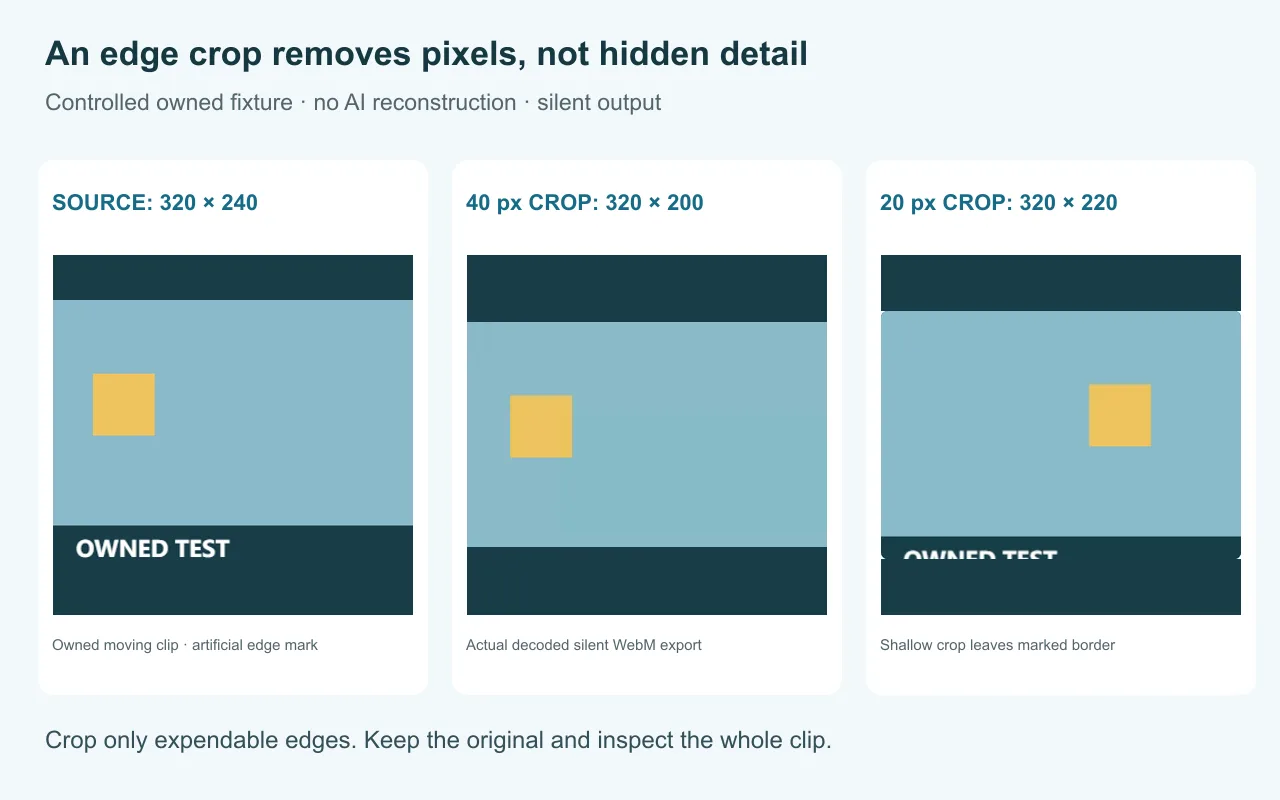
Owned synthetic fixture. The export test uses the same file input, crop control, export button and download that appear above. Local test details and limitations are retained in our evidence log.
Check the crop before you keep the export
- Use only a clip you own or have permission to edit; keep its original.
- Choose the file and move the original player's scrubber to representative frames.
- Set the smallest edge crop that removes the mark without cutting useful content.
- Play the original and inspect the cropped preview for moving marks or subjects near the boundary.
- Export, download, and play the silent WebM all the way through. Stop if the framing or motion is wrong.
Can the image tool remove a video watermark?
No. Cleanmark's image brush accepts still images and repairs selected pixels. It cannot process an entire clip or guarantee consistent repairs across frames. Use the video crop above only for disposable edges; use the image tool when your source is a still image.
Can it remove AI watermarks from text or hidden signals?
No. A visible video logo, a picture's text layer and an invisible provenance signal are different things. Neither cropping a logo nor brushing an image demonstrates that invisible signals are gone. Our visible-mark and provenance explanation separates those scopes. The Gemini and text-removal pages are image workflows, not proof of hidden-text watermark removal.
When should you stop?
Stop if the crop removes a face, subtitles, credit you need, or important composition. If the mark belongs to a creator or preview service, request an authorized clean export. This tool has no generative fill and cannot restore covered content. Browser decoding and WebM recording vary by device; an explicit decode or export error means this file was not processed successfully.