PDF Watermark Remover
Open your PDF, select a small visible mark on a plain margin, preview the pixel repair and export a new PDF. Processing stays in this browser. The exported PDF contains images, not searchable or editable document text. This is manual repair, not automatic watermark-object detection or hidden-text recovery.
Use an original you own or have permission to edit. Keep it unchanged. Marks over wanted text or lines can leave damage; a clean-looking patch does not recover covered content.
Loading the local PDF tools...
Drag a rectangle over the mark, or enter its percentage position below. Include a little clear background around the mark.
Repair and save
- Choose one PDF and inspect its rendered page.
- Select only the small visible mark. Apply the same region to all pages only when that position is appropriate.
- Repair and check the result. Reset any page whose wanted detail was damaged.
- Confirm the image-only export, create the PDF and download it. Reopen the saved file and check every page.
What is supported?
One unencrypted PDF, no larger than 10 MiB, with at most 12 pages. Forms, XFA and signed or certified files are rejected. A selection must be at least two rendered pixels in each direction and cover no more than 20% of the page. Rendering uses up to two pixels per PDF point, with a 1,600-pixel longest-side cap. Output page dimensions follow the rendered page's visible orientation.
The selected pixels are filled from the surrounding edges. No generative model runs, and the original hidden scene is not recovered. The export embeds rendered PNG pages in a new PDF; it does not delete a watermark text object while preserving the rest of the original PDF structure. For a large diagonal mark through body text, this workflow may be unsuitable.
What our saved PDF test actually showed
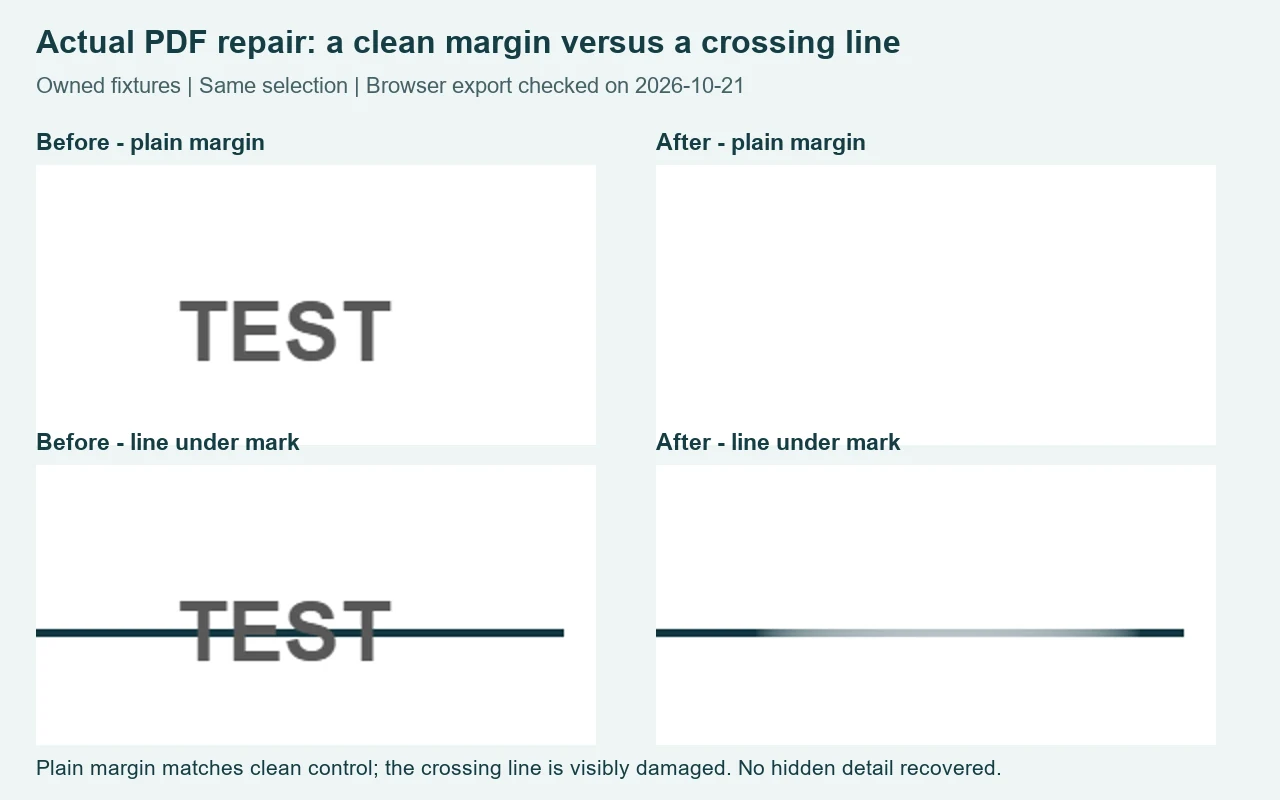
On 21 October 2026, we created our own two-page PDF and a matching clean control. Each page measured 480 by 320 PDF points. Both contained a wanted heading and sentence near the top, plus a page number. The marked copy added the word TEST near the lower-right corner. On the second page, a horizontal line passed through that position. This let us separate a blank-margin success from damage to wanted detail using the same selection, rather than choosing a different repair for each result.
We opened the marked PDF in this browser tool. Each page rendered at 960 by 640 pixels. We selected left 74%, top 76%, width 20% and height 14%, then applied the same percentage selection to both pages. These coordinates describe this fixture, not a universal watermark position. Before repair, the first marked page differed from its clean control at 1,567 pixels. After repair, that difference was zero. This exact comparison was made between the PNG previews saved by the browser, not between screenshots at different zoom levels.
The second page gave a different answer. Its marked input differed from the clean control at 1,566 pixels; its repaired output still differed at 768 pixels. The crossing line became pale inside the patch. We also compared each marked preview with its repaired preview outside the selected rectangle: neither page had changed pixels there. A smaller difference count does not make the line correct. The clean control shows that this repair removed visible lettering while damaging detail underneath it.
Next we created and downloaded the repaired PDF, then opened that saved file with an independent PDF renderer. It contained two pages, each still 480 by 320 points. We extracted the embedded page images and compared them with the repaired browser PNGs: they matched exactly. The heading remained visible, but extracting searchable text from either exported page returned none. That is the cost of this export path: the page is now an image, even when its letters still look sharp at ordinary viewing size.
A separate owned input contained one full-page raster image instead of separate PDF text. We opened it, repaired the corner and downloaded a one-page PDF. Its embedded image also matched the saved repaired browser preview. This confirms that the workflow can produce an actual PDF from that input; it does not establish that every scanned background can be repaired. Finally, an owned PDF with an interactive text field was rejected with the message “Forms, XFA and signed/certified PDFs are not supported.” No repaired download was offered for that file.
For a document like the first fixture, keep the original, inspect the patch, then check the downloaded copy. For a document like the second, reset the page instead of trusting the disappearance of TEST. If you need searchable text, live form fields or original PDF objects, this image-only workflow does not meet that requirement. These are fixture-specific results, not a claim that this tool preserves all PDFs or that other tools lack these capabilities.
Local processing and scope
The PDF file is opened and rendered on your device. The parser, fonts and export libraries load from this site; the PDF file bytes are not sent to a processing API. This separate PDF tool was added after our earlier PDF object-versus-image diagnostic experiment; that earlier report tested the image tool available at the time, not this PDF export workflow.
For a supported Gemini image corner overlay, use the Gemini corner watermark tool. For a standalone PNG, JPG or WebP, follow the free image tool steps. These are different input and output workflows.
Built with locally hosted PDF.js and pdf-lib. Licenses: PDF.js and pdf-lib. No account, subscription or paid processing API is used.