Remove Emoji from Photo: When the Line Underneath Disappears
To remove an emoji from a photo, use the manual brush only when replacing that patch is acceptable. If the emoji is partly see-through, a line underneath may still be visible before editing and disappear after repair. Cleanmark fills from nearby pixels; it does not unblend the sticker or retrieve the original covered detail.
Try the image brush on your own copyCentral emoji marks require manual selection. The automatic option is for supported small edge or corner marks, not an automatic face or centre-emoji remover. Keep the input and edit only files you own or have permission to change.
One smiley, two opacity settings, the same repaired pixels
We made three 400 × 240 pixel inputs from our own diagrams: an opaque smiley on a plain background, an opaque smiley over two crossing lines, and the same smiley partly transparent over those lines. The face graphic was drawn by us, not taken from a photograph, app screenshot or somebody else's portrait.
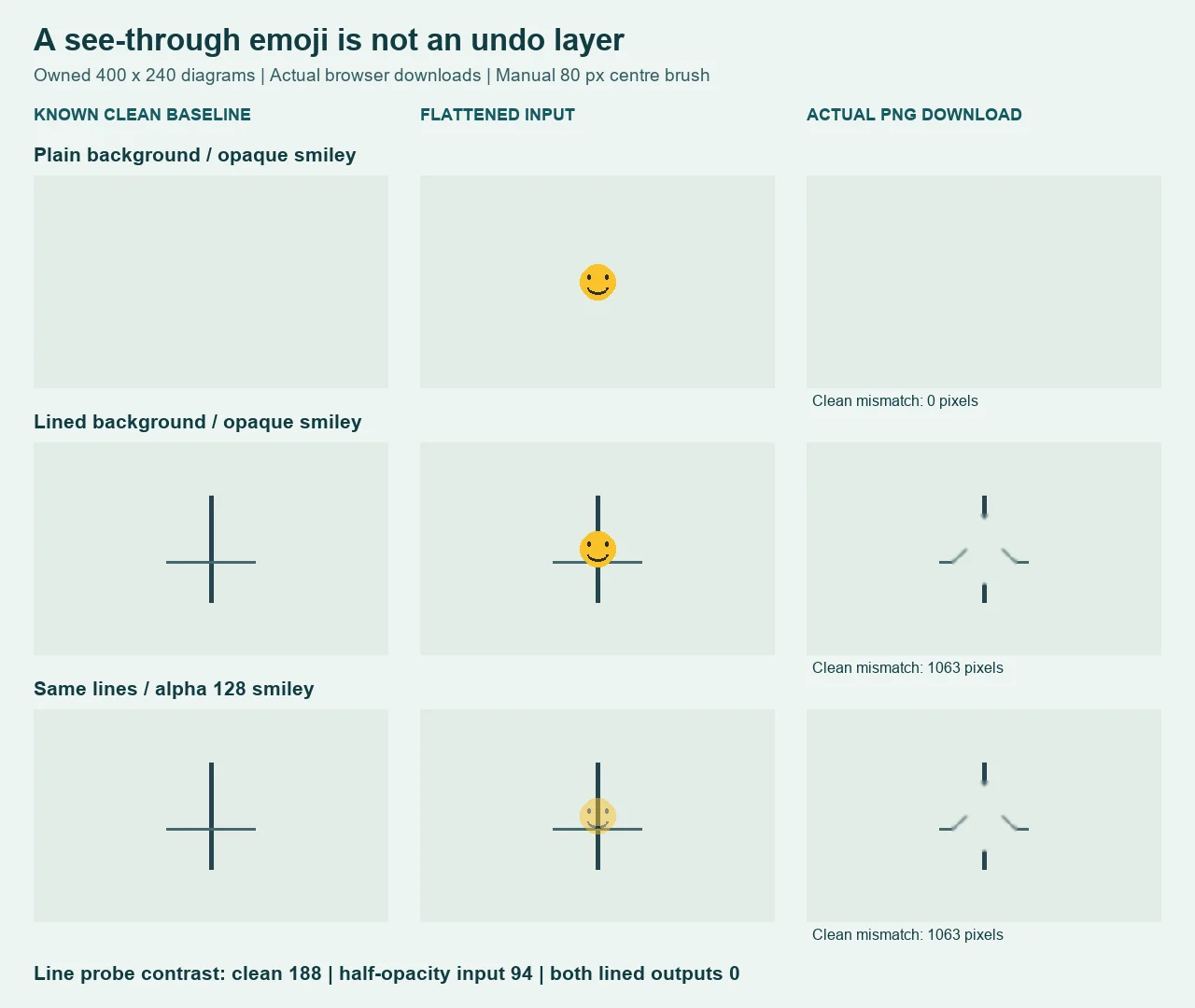
The two lined inputs differed only in the opacity of the smiley. We used alpha 255 for the opaque graphic and 128 for the partly transparent version, then flattened both onto the same opaque background. Those settings belong to our generated fixtures; we did not measure the opacity of any real user's emoji.
Each file was uploaded separately to the unchanged production tool. With the displayed canvas at 400 × 240 pixels, we selected an 80 px brush, clicked once at the image centre, ran Remove watermark, and downloaded the PNG. We did not call the repair algorithm directly or replace a failed output with an illustration.
Plain / opaque
0 pixels different from the clean control.
Downloaded PNG: 2,918 bytes.
Lines / opaque
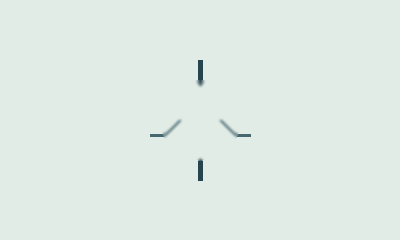
1,063 pixels different from the clean control.
Downloaded PNG: 4,701 bytes.
Lines / partly transparent
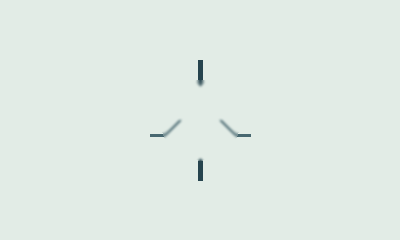
1,063 pixels different from the clean control.
Downloaded PNG: 4,701 bytes.
Both lined downloads contained exactly the same decoded RGB pixels. The partly transparent input had retained a visible trace of the original vertical line, but that extra information did not survive this brush fill. A matching output from different inputs is not evidence that the original line was recovered.
A small contrast check makes the loss explicit
We inspected the pixel at (200, 105) on the original stripe and the nearby pixel at (206, 105) on the plain background. For these two points, contrast means the largest absolute difference between corresponding red, green or blue channel values. It is a two-pixel measurement, not a perceptual quality score.
At both probe positions, the lined output was RGB (226, 236, 230): the background color in our drawing. The same measurement was zero before and after repair for the opaque smiley because it had already hidden that local contrast. The comparison therefore separates an already covered line from a visible trace that the repair removed.
All downloads stayed at 400 × 240 pixels. No input-to-output RGB changes occurred outside the inspection rectangle with x from 150 inclusive to 250 exclusive and y from 70 inclusive to 170 exclusive. That box is deliberately larger than the painted circle; we did not measure an exact brush mask or prove a boundary guarantee for other files.
Why see-through does not mean an undo layer
In ordinary source-over compositing, both the overlay's opacity and the backdrop contribute to the displayed color. A partly transparent sticker can leave some backdrop contrast in the flattened pixels. That is different from having the original image available as a separate editable layer. The W3C compositing specification describes this color-combination model.
Our brush attempts nearby-pixel filling. It does not estimate an arbitrary sticker's original colors and opacity and solve that blend backwards. Nor does this experiment establish that a different editor could recover a particular photograph. A pleasing replacement and the correct original geometry are separate results.
What to check before keeping the repair
For a see-through emoji over a sign, window edge or small pattern, compare the visible feature before and after the edit. Reject the export if removing the graphic also erases a line you needed. Do not keep repainting merely because the yellow circle has gone. On our plain control the repair matched the clean drawing; that does not transfer to the lined case.
Use the retained-original workflow if a clean or editable copy exists. For the separate question of transparent output pixels, see the PNG alpha-export test. Here, all three inputs were already opaque RGB pictures: the experiment concerns a see-through overlay inside the picture, not background removal.
Reproduce this bounded test
Run dated 19 October 2026. Download the partly transparent input, opaque input and known clean control. Use the same centre click and brush setting on an unscaled 400 × 240 canvas, then inspect your actual PNG. The measured outputs are also available: partly transparent case and opaque case. Browser scaling and a different stroke can change a result.



This is a three-file schematic test, not a face-recovery service, privacy certification, real-photo success rate or comparison of professional editors. The useful finding is narrow: in this run, filling a partly transparent smiley erased line contrast that was still present in the input.