Is there a good way to remove the watermark from photos I've already taken?
Yes—but check for a retained clean original before editing the pixels. In the photo editor that saved the image, look for a reversible option such as Revert to original. If that restores an unmarked file, keep that version. If the watermark is already flattened into the only copy, crop it when the edge is disposable or use a tight manual brush when the frame must stay intact.
Choose the least destructive path
What our controlled test found
We created a 640 × 480 phone-style scene that we own, added an artificial camera watermark to the bottom-left corner, and ran the unchanged Cleanmark manual-brush workflow. The exported PNG stayed 640 × 480. Pixel comparison found 20,120 changed pixels inside the brush mask and zero changed pixels outside it.
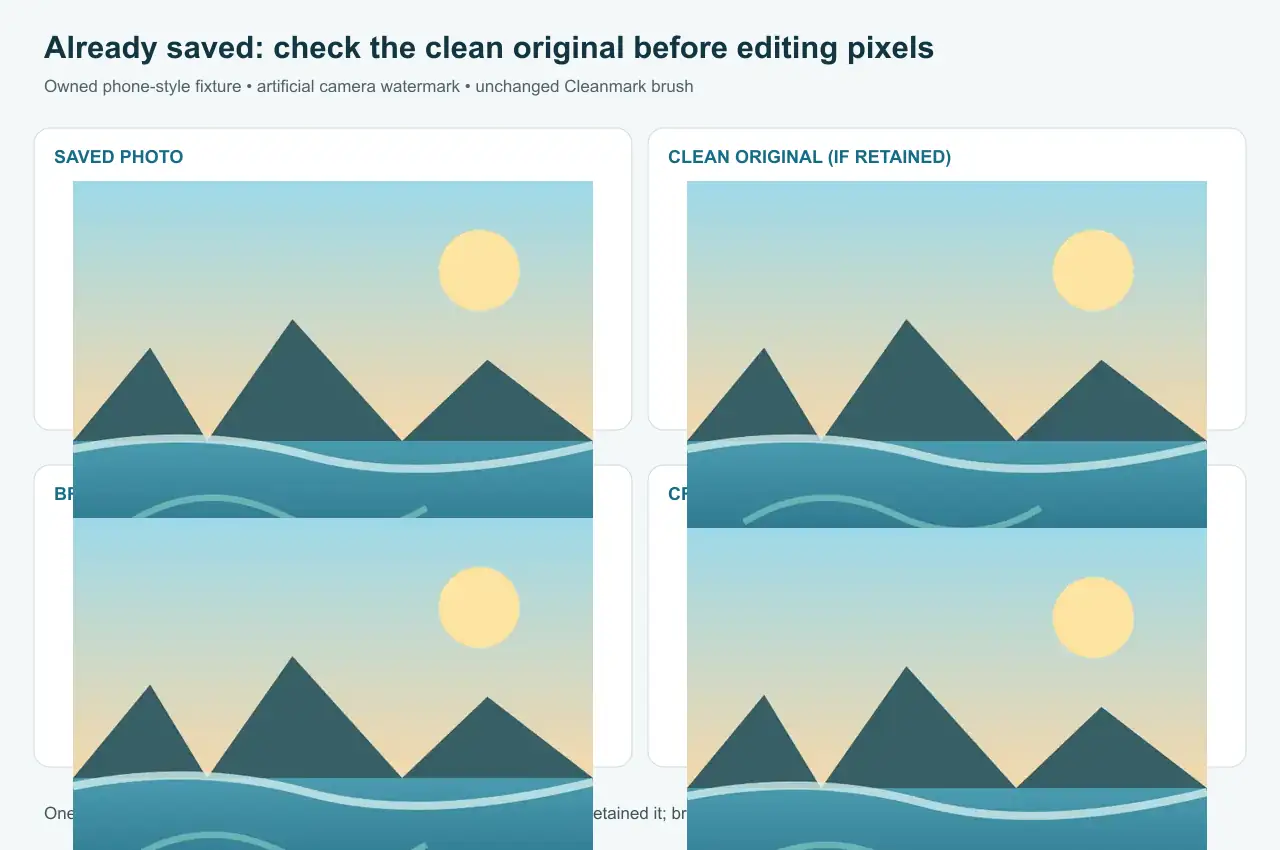
Owned generated fixture and actual browser-tool output. The WebP evidence image is 30,262 bytes. The artificial mark says “SHOT ON CLEANMARK • TEST”; no community photo or third-party watermark was reused.
For the crop comparison, we removed the bottom 68 pixels. The result measured 640 × 412, so this exact crop lost 14.2% of the image height. The brush kept the original dimensions, but it replaced the painted pixels rather than recovering what had been hidden beneath the label. These figures describe one controlled run, not a quality promise for other photos.
Before you overwrite anything
- Duplicate the saved photo or confirm that the editor can undo changes.
- Look for the clean original inside the app that created or edited the photo.
- If no clean copy exists, decide whether losing a strip of the frame is acceptable.
- If not, paint only the small visible mark and inspect the repaired corner at full size.
- Export a new file and keep the untouched watermarked copy until you accept the result.
Know the limit: Cleanmark uses nearby-pixel filling and does not run a generative model. It can repair a small selected visible layer, but it cannot reveal original detail that an opaque watermark replaced. Large marks, faces, object edges, gradients, fine text, and complex textures may leave blur, repeated colors, or visible repair marks.
The community report that prompted this page concerned photos already taken on a phone. We did not test a Samsung device or claim that a specific menu exists on every version. The verified part here is the image-file decision and our own crop-versus-brush browser test.