Remove Object from Photo: Check the Shadow Before You Export
To remove a small object from a photo with Cleanmark, select it with the manual brush and inspect its shadow before exporting. An object can disappear while a separate shadow stays behind. This tool fills from nearby pixels; it cannot recover the original detail hidden under the object.
Open the image brushA central object needs the brush. The automatic option is limited to supported small edge or corner marks; it is not an automatic object-and-shadow detector. Use only an image you own or have permission to edit.
What our three actual downloads show
We drew two original 400 × 240 pixel schematic inputs. Each has a small orange object at the centre and a separate dark oval to its right. One background is uniform; the other has fine diagonal lines. These are controlled illustrations, not photographs, and neither is an imported community image.
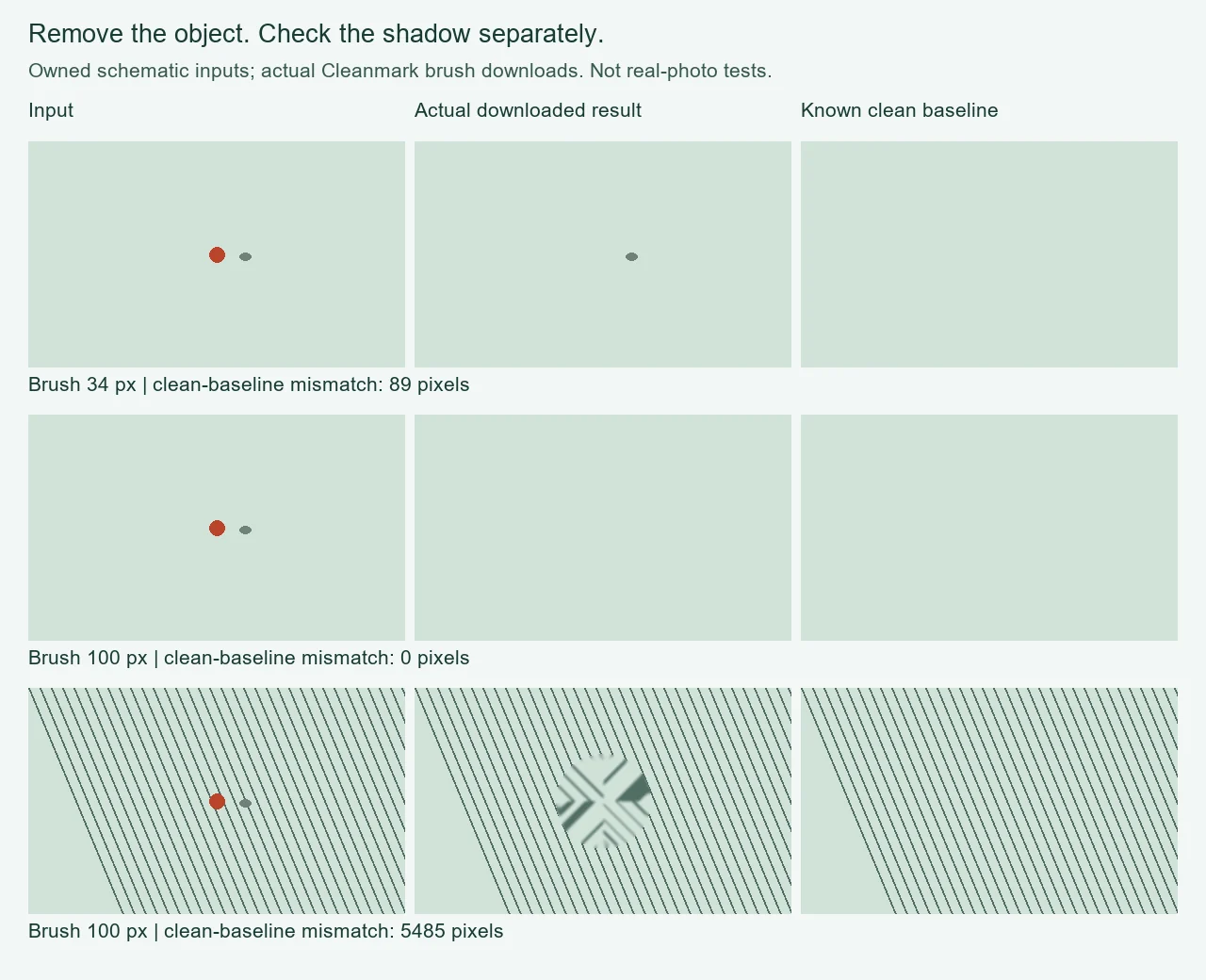
| Background / selection | Brush diameter | Pixels different from clean baseline | Downloaded PNG bytes |
|---|---|---|---|
| Plain / object only | 34 px | 89 | 3012 |
| Plain / object and shadow | 100 px | 0 | 2918 |
| Fine lines / object and shadow | 100 px | 5485 | 13318 |
On the plain input, one centre click with the 34 px brush changed 221 pixels. The exported image still differed from the clean baseline at 89 pixels, all within the separate shadow box. The orange object had been repaired, but its neighbouring shadow remained. A clean-looking centre was therefore an incomplete check for this input.
We restored the same original input, cleared the mask, and used one centre click with the 100 px brush. This wider selection covered both the object and its shadow. The actual download changed 310 input pixels and matched the entire clean baseline: zero differing RGB pixels. That result applies to this uniform schematic, not to arbitrary photographs.
The lined-background control used the same 100 px brush and centre click. Its download differed from the known clean baseline at 5,485 pixels. Removing the visible object did not reconstruct those diagonal lines faithfully. The wide selection was useful for including the shadow, but it also made a larger area depend on replacement pixels.
Why a wider selection is not a universal fix
These runs changed brush diameter as well as whether the shadow was included. They are a practical workflow comparison, not an experiment isolating shadow membership alone. They cannot establish that a particular diameter is optimal, or that every remaining dark patch is a cast shadow.
All three downloads retained 400 × 240 pixels. We compared decoded RGB values with the saved input and the clean baseline. None changed pixels outside the conservative inspection rectangle from (148, 68) to (252, 172). That rectangle is larger than the painted circle; it is not an exact mask boundary or a general guarantee about other runs.
The reported mismatch counts are exact pixel comparisons from these files. They are not visual-quality scores, success rates, or evidence that hidden photo detail has been recovered. The two plain outputs and the lined failure control must be read together.
A focused object-removal workflow
- Start with the original saved image and keep an untouched copy.
- Choose a small unwanted object on a simple background. Use the manual brush for the centre of the image.
- Inspect beside the object for a cast shadow or another connected visual trace. Select only traces you intend to remove.
- Run the repair and inspect both the former object position and its surroundings.
- Download a PNG copy only if the result is acceptable. Stop when important lines, texture, or subject detail become distorted.
A dark patch inside a repaired area can be an artifact rather than the original shadow. Repeatedly enlarging the selection may destroy useful surrounding detail. If the object covers a face, text, or a unique edge that must remain accurate, obtain a clean original or use a workflow with deliberate source selection. This browser fill does not reveal the concealed original pixels.
Which part of this page is new?
The narrow comparison here is object-only selection versus selection that also includes a separate shadow, with a known-clean control and a textured failure case. It is not another general watermark-removal guide. For a mark crossing an existing boundary, see the sharp-edge test; for choosing between framing loss and repair, see crop versus brush.
Test scope and files
Run on 18 October 2026 through the unmodified production browser tool: upload, centre brush click, Remove watermark, and Download PNG. No generative model, automatic centre detection, professional editor comparison, or real-photo efficacy test was run. Browser brush values were screen pixels; the displayed canvas and input were both 400 × 240 for these runs.