How do I remove a watermark that appears only halfway through a video?
Set the repair zone's start and end to the part where the watermark is visible, rather than applying the patch to the whole clip. Our same-file test removed a middle-section DEMO mark while retaining wanted KEEP lettering before and after it. Applying the identical rectangle for the whole clip erased that wanted lettering too.
Open the local video repair tool Inspect the saved-file test
Use a permitted video already saved on your device. Timing selects when a manual rectangle is active; it does not detect or follow a watermark automatically. This browser workflow records a new WebM, so source times and saved-file playback times can differ.
One rectangle, two time ranges
On 30 October 2026 we made a new six-second owned video at 480 × 270 pixels and 24 source frames per second. DEMO appears only from source time two seconds up to, but not including, four seconds. In that exact location, KEEP is wanted content during the earlier and later sections. A moving square and a burned-in source timer make it possible to inspect the surrounding picture and identify source frames after export. The audio is a generated tone, not a licensed song or third-party soundtrack.
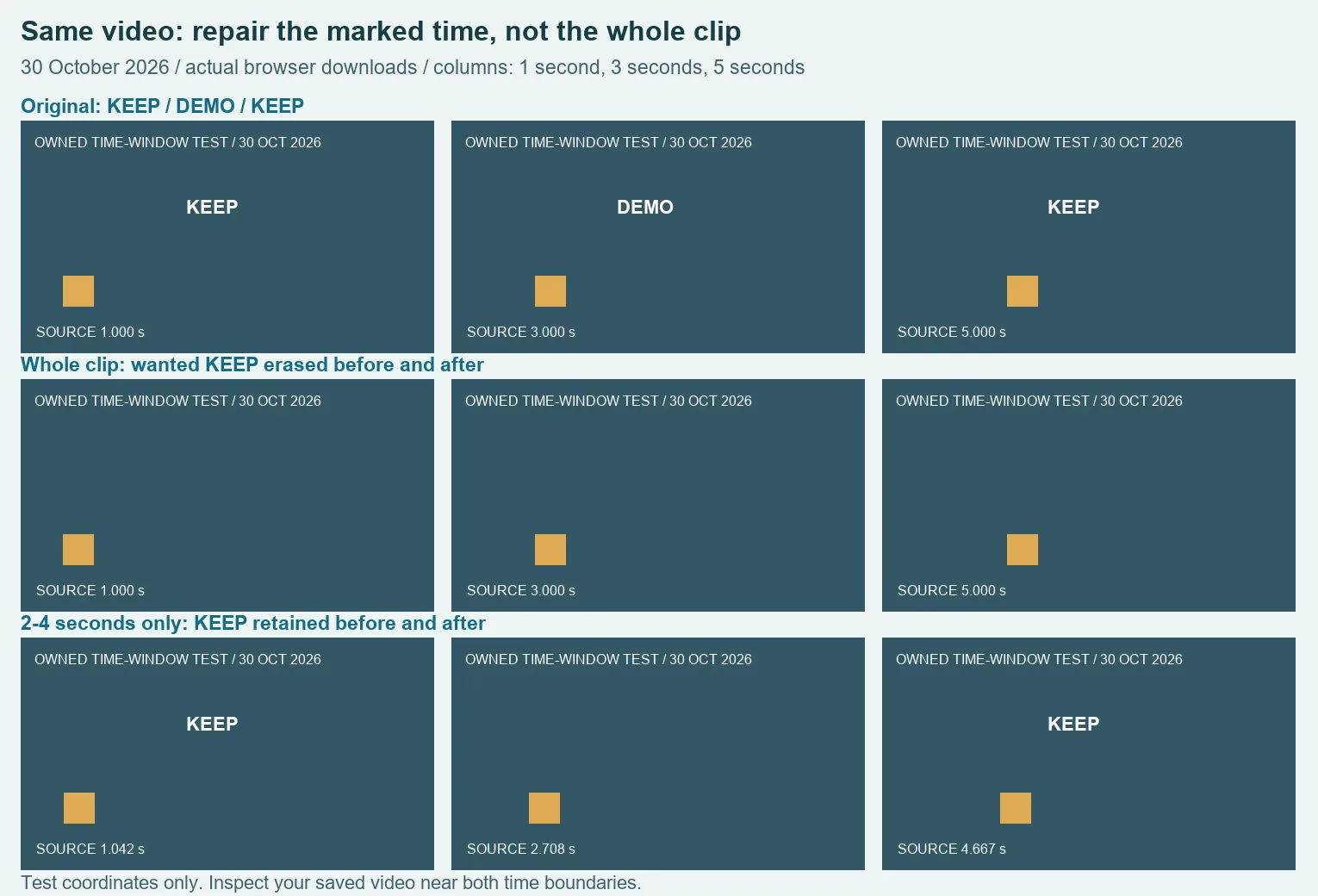
Both browser runs used the existing video repair tool and the same source MP4. Zone 1 was X 182, Y 80, width 100 and height 42 pixels; Zone 2 remained disabled. For the first run we left the range at zero to six seconds. We downloaded the resulting 198,772-byte WebM. The DEMO mark was cleared in the middle sample, but KEEP disappeared from both clean sections. This is the failed setting, even though it produced a playable file.
For the second run, we changed only Start to 2 and End to 4. The downloaded file measured 207,329 bytes. At the inspected earlier and later samples, KEEP remained readable; in the middle sample, DEMO was replaced by a plain patch. The useful difference was when the rectangle operated. Making the rectangle smaller would not solve this example, because wanted and unwanted lettering occupy the same position at different times.
The timestamps exposed another limit. In the timed output, the frame extracted at saved playback time 4.1 seconds displays a burned-in source time of 3.792 seconds. That frame is still in the source's marked interval. Do not judge the end boundary solely by typing the same number into a player after export. The source timer is part of our fixture, so it lets us see this difference rather than assume exact timing was retained.
| File | Active source range | Bytes | Decoded audio | Picture observation |
|---|---|---|---|---|
| Source MP4 | No repair | 81,966 | 6.016 seconds | KEEP / DEMO / KEEP |
| Whole-clip failure | 0–6 seconds | 198,772 | 6 seconds | Wanted text erased too |
| Timed result | 2–4 seconds | 207,329 | 6.3 seconds | KEEP retained around the patch |
All files decoded completely and retained 480 × 270 picture dimensions in the extracted samples. Decoded audio duration was calculated as the mono sample count divided by 48,000 samples per second. The files contained nonzero audio. These are file observations, not proof of lossless sound, frame-accurate timing, or a success rate for other footage. In particular, the longer timed recording should not be described as an exact six-second copy.
Download the owned source, whole-clip failure, and timed saved result. The test settings and measurements with file hashes let you check which input and outputs were used. Keep the failed export when comparing the settings: looking only at the repaired middle frame would make both runs seem acceptable.
Use the source preview to find the interval
- Choose your own short local video in the manual repair tool.
- Scrub the source to find where the mark first appears and where it stops. Watch the selected location before and after that interval too.
- Set a tight rectangle around the mark with the required clean border. Enter the source times in Start and End. Our numbers apply only to the downloadable fixture.
- Inspect the repaired preview around both boundaries, then export and download.
- Play the saved result through the transitions and inspect wanted details. Check sound and total length separately. If timing is critical, retain the original and use an editing workflow that meets your timing requirements.
A time window does not improve the hidden background
Timing prevents a patch from operating outside its interval. Within that interval, the tool still estimates replacement pixels from the border. A face, line or detailed texture behind the mark can be damaged. Our flat-background result does not establish that those features can be reconstructed. The general video test retains a crossed-line failure for that separate issue.
If the mark changes location, inspect each position rather than stretching one box over the frame. The existing saved-file TikTok example tests two positions. If the problem is wanted subtitles beside the box, see the separate caption-preservation test. This page isolates a different question: avoiding unnecessary repair during unmarked portions of one clip.