Does video watermark repair preserve a 60 fps clip's motion?
No: our saved 60 fps test lost half of its distinct motion samples. The source contained 180 frames; the actual downloaded repair contained 91 frames but only 90 different source ticks. The DEMO lettering cleared in the inspected frames, yet the motion-preservation check failed. Keep the original if every high-rate moment matters.
Open the local video repair tool Inspect the source and saved results
Tested 6 November 2026 with two new owned, silent animations in the current in-app browser. These are individual exports, not a universal frame-rate cap or a benchmark of other tools. This tool repairs a small area of a local MP4 or WebM; it does not download social links.
The same motion recipe, sampled two ways
We generated three-second, 480 by 270 pixel clips with a gold triangle moving outside the repair area. A small DEMO label sits on a plain patch. Each frame includes a visible source-time counter and eight black-or-white cells encoding a shared 60 Hz tick. The 60 fps source has every tick from 0 through 179. The 30 fps control intentionally contains only 0, 2, 4 and the following even ticks through 178. Its missing odd ticks are not a repair defect.
The two original MP4 files measured 48,649 and 31,647 bytes respectively. We decoded every input frame before testing: 180 frames in the high-rate clip and 90 in the control, with every encoded counter matching its expected source tick. These are newly made test files, not old exports reused as a new test or videos borrowed from a platform.
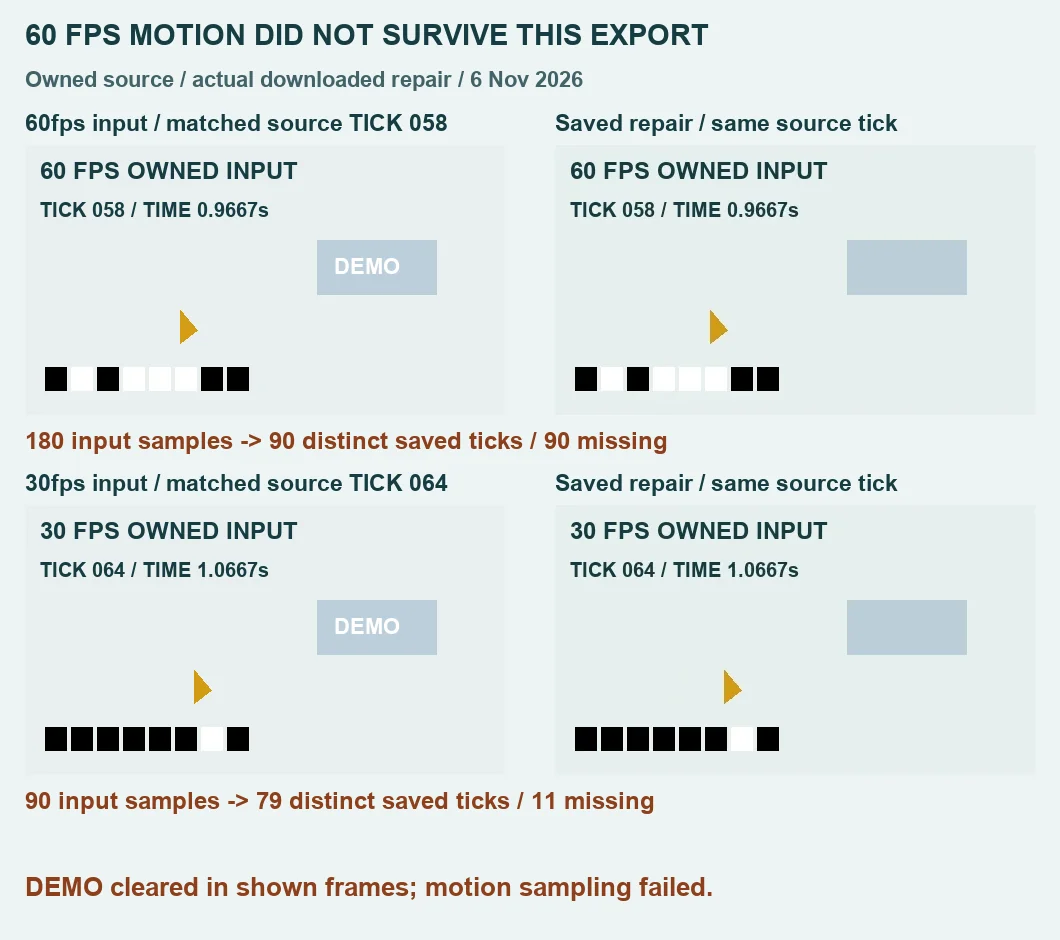
Actual export settings and saved-file counts
We selected each original file in the unchanged production tool, set one rectangle to X 303, Y 103, width 91 and height 38 source pixels, and applied it from zero to three seconds. Zone two stayed disabled. After each real export showed Ready, we downloaded its WebM. Both files decoded completely as 480 by 270 VP9 video. The saved sizes were 171,404 bytes for the 60 fps input and 143,762 bytes for the control.
| Input | Source frames | Saved frames | Different source ticks | Source ticks missing | Adjacent repeats |
|---|---|---|---|---|---|
| 60 fps | 180 | 91 | 90 | 90 | 1 |
| 30 fps control | 90 | 79 | 79 | 11 | 0 |
The high-rate result contains one adjacent repeat and no backwards tick steps. Its 90 distinct saved ticks leave 90 of the 180 source moments absent. The control also failed to retain all of its own samples: 11 of its 90 expected even ticks are missing. That control prevents us from describing this run simply as a flawless conversion to 30 fps. Neither output produced a counter outside its source's expected set.
How we read motion separately from timestamps
We decoded saved frames with passthrough timing, rather than asking the decoder to manufacture frames at a fixed output rate. For each frame, we read the mean RGB value in a five-by-five patch at the centre of each binary cell. A value above 128 means a set bit. The decoded tick is the sum of each bit multiplied by its power of two. We also counted means between 64 and 192 as ambiguous; none occurred in these decoded outputs. The complete cell means and counter lists remain in the measurement download.
Missing samples are the expected source-tick set minus the distinct decoded output-tick set. An adjacent repeat means two successive saved frames carry the same source tick. These definitions avoid treating an extra recording frame as extra motion detail. They also avoid counting the control's deliberately unsampled odd ticks as losses. This test identifies retained source moments; it does not certify every pixel outside the rectangle as identical.
The saved 60 fps-input video's presentation timestamps run from 0 to 3.045 seconds. Its mean interval rate is (91 − 1) / (3.045 − 0), approximately 29.557 frame intervals per second. The control runs from 0 to 2.932 seconds: (79 − 1) / (2.932 − 0), approximately 26.603. Those calculated averages describe presentation spacing, not unique captured detail. Individual intervals vary: 0.025 to 0.068 seconds in the high-rate result, and 0.025 to 0.097 seconds in the control. A container's reported time base is not a measured playback frame rate.
The last decoded frame timestamp is not a whole-file duration guarantee. Recording start, end and presentation spacing can differ from source time, so comparing frame number 30 in both files would be misleading. Our illustration instead matches the burned-in source counter. Both source clips were deliberately silent. The exports contain Opus audio streams, but this experiment makes no claim about preserving meaningful sound or synchronization.
What cleared, and what failed
In the matched frames shown above, the white DEMO lettering has been replaced by the surrounding plain patch. The triangle and counter remain visible. That limited appearance result does not rescue the failed temporal check: a clean-looking still cannot prove that all intervening moments survived. We retained both downloaded files, including the control's lost samples, instead of selecting only the cleaner-looking frame as evidence of a successful video.
If a clip contains a fast gesture, a sports contact or a frame you need for analysis, these results are a reason to keep the source and inspect the saved progression. They are not measurements of those untested scenes. We ran one export for each input in this browser and did not isolate the contribution of decoding, scheduling or recording. The observations establish loss in these files; they do not establish one cause, a device-independent limit or another tool's performance.
Check your saved clip before replacing the original
- Keep an untouched copy of footage you own or may edit.
- Use a small repair rectangle with a clean border; preview the target throughout its active time range.
- Export while keeping the tool tab visible, then download the actual result.
- Inspect moving objects outside the repair as well as the repaired patch. Check the beginning, middle and end.
- If individual frames matter, compare source and result counters or timestamps. Do not infer retained motion from resolution, extension or one still frame.
Will a 30 fps source avoid the problem?
Not in this control: its saved file retained 79 of 90 source ticks. A lower source rate did not make this export sample-complete. Your own saved file needs inspection; we have not measured a general reliability rate.
Does keeping the frame size mean keeping the original video?
No. Both outputs kept 480 by 270 dimensions while losing temporal samples. The browser creates a new WebM recording. Dimensions, spatial repair, motion cadence and sound are separate acceptance checks. For the separate sound question, see our actual left/right audio test; for portrait display, see the orientation export test.
Download the complete evidence
- Owned 60 fps source MP4 and actual saved repair
- Owned 30 fps control MP4 and actual saved control repair
- Full input/output counter lists, timestamps, cell readings, hashes and formulas
These small fixtures test temporal sampling outside an isolated DEMO repair. They do not test hidden-detail recovery, moving-watermark tracking, alpha preservation or footage downloaded from a link. Use the still-image tool when your input is a photo rather than a video.