How do I remove two watermarks that appear at the same time in a video?
Use a separate, tight repair zone for each mark, with both zones active during their shared interval. In our same-file test, two small boxes cleared the two DEMO labels while leaving the wanted KEEP lettering between them readable. A single wide box cleared that lettering and its underline as well. Check the downloaded video's timing too: our first two-zone recording had a separate timing failure.
Open the local video repair tool Compare the actual saved files
This workflow accepts a permitted video file already on your device. It estimates pixels inside fixed rectangles; it does not download a social link, follow moving objects, or reconstruct hidden original detail.
Same input, separate boxes versus one wide box
On 31 October 2026 we generated a new owned MP4 at 480 × 270 pixels, with 96 source frames at 24 frames per second. Two white DEMO labels remain visible simultaneously. Yellow KEEP lettering and an underline sit between them. A moving gold square, burned-in source timer and generated audio tone help expose changes outside the repaired labels. No third-party footage or stock preview was used.
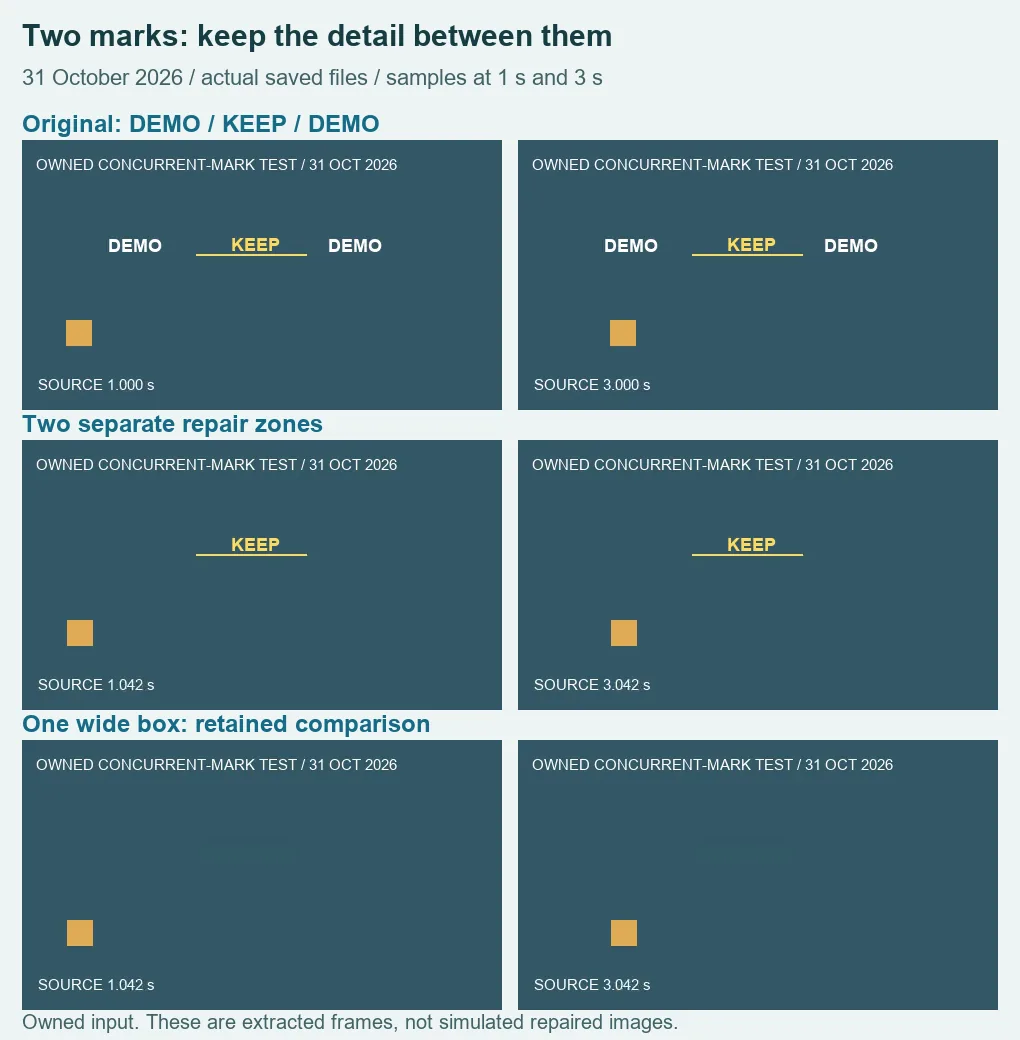
We selected this source in the existing production tool. Zone 1 used X 80, Y 90, width 70 and height 30 pixels. Zone 2 used X 300, Y 90 with the same width and height. Both were enabled from zero to four source seconds. Their combined area was (70 × 30 + 70 × 30) / (480 × 270) × 100 = 3.2407% of this frame. The gap between the rectangles contained the wanted text and line.
The first two-zone download was 118,892 bytes. Its sampled picture retained KEEP, but at saved playback time three seconds its burned-in source timer read only 0.625 seconds. At playback time one second it read 0.167. A file can decode and have sound while failing this visual timing check. We retained that file as a timing failure; the cause was not established.
We then tested a single rectangle at X 80, Y 90, width 290 and height 30, active for the same zero-to-four-second interval, with Zone 2 disabled. It covered 290 × 30 / (480 × 270) × 100 = 6.7130% of the frame, within the tool's per-zone limit. This 120,945-byte export cleared both DEMO labels but also erased KEEP and its underline in the one- and three-second samples. Passing the size check did not make the box a good choice.
Finally, we restored the two small rectangles and repeated the browser export. The new download measured 120,472 bytes. Both labels were cleared and the middle lettering and underline remained readable in those samples. Its burned-in source timer read 1.042 seconds at saved playback time one second and 3.042 at playback time three seconds. That repeat was closer to the source timing than the first run, but it was not an exact timestamp copy. We have not inferred a general success rate or a cause for the difference.
| File | Bytes | Decoded audio | Observed result |
|---|---|---|---|
| Owned source | 55,998 | 4.010667 s | DEMO / KEEP / DEMO |
| First two-zone export | 118,892 | 3.96 s | Middle text retained; visual timing failed |
| Wide single-zone export | 120,945 | 3.96 s | Wanted middle content erased |
| Repeat two-zone export | 120,472 | 3.96 s | Middle text retained; small sampled timing offset |
All four files passed full decoding and the extracted pictures retained 480 × 270 dimensions. Decoded audio duration is the mono sample count divided by 48,000 samples per second; the measurements file includes those counts and file hashes. Nonzero audio and a successful decode do not establish synchronization, lossless audio or complete motion preservation. The first export is the concrete reason to inspect the source timer as well as the watermark.
Download the owned source, first timing failure, wide-box failure and repeat two-zone result. The settings and file measurements keep the comparison reproducible. These coordinates belong to this fixture, not to every video.
Set two rectangles without repairing the gap
- Choose your own short saved video in the existing manual tool.
- Place Zone 1 around the first mark and enable Zone 2 for the second. Leave the clean sampling border required by the tool, and keep wanted content outside both boxes.
- Set each zone's source start and end times. Marks visible together need overlapping time ranges; the rectangles themselves must remain separate.
- Inspect the repaired preview, then export with the tab visible. Download and play the saved result, checking both marked areas and the gap.
- Compare movement, sound and source timing. Retain the original and reject an output that damages wanted detail or misses required timing.
Two zones do not mean automatic tracking
The existing tool allows each rectangle to cover at most 12% of the frame, with combined zones at most 20%, and requires separate rectangles inside the frame with a one-pixel border. Those limits control the supported repair size; they do not promise restoration of faces, texture, lines or text behind a mark. Our labels sat on a plain background. KEEP survived because it was outside the two small rectangles, not because the tool recognized valuable text.
For a mark that switches position over time, the saved-file position-switching example addresses a different setup. If one position is marked only during part of the clip, use the time-window comparison. For wanted captions beside a mark, see the caption-preservation test. This page isolates concurrent separated marks and the content between them.